
SteamVR

SteamVR

35 ratings
How to scan your room, objects or environments for use in VR
By Rorenz
This guide will show you how you can 3D scan areas or objects via LiDAR or photogrammetry and add them to VR. (Basically .obj in Source 2 hammer)
   
Award
Favorite
Favorited
Unfavorite
IMPORTANT PRIVACY INFORMATION
IMPORTANT READ THIS FIRST
COVER OR HIDE PRIVATE PICTURES OR LOCATION INFORMATION. THE RESULTS WILL BE PUBLISHED TO THE STEAM WORKSHOP. THE WORKSHOP OBJECT CAN ALSO BE MARKED AS HIDDEN OR FRIENDS ONLY. STAY SAFE.
LiDAR or Photogrammetry
There are 2 main ways to do 3D scans.
  1. Using a LiDAR capable device
  2. Photogrammetry
If you are able to take proper 3D scans using a different method let me know and I will try to add them. If you already have a 3D scan that you would like to use, this guide will also cover that (see "preparing the 3D model for use in Hammer").

LiDAR
If you have access to a device that is equipped with a LiDAR sensor I would always recommend using that over photogrammetry.

Pros:
  • It's very easy
  • It's a very fast method
  • Great results in a short amount of time
  • Results are properly rotated
Cons:
  • Only a few devices are equipped with a LiDAR sensor
  • It might take a lot of tries
Devices that are equipped with a LiDAR sensor are most Apple "Pro" devices such as:
  • iPhone 12 Pro
  • iPhone 13 Pro
  • iPad Pro 2020
  • iPad Pro 2021
This is just a list of devices that I specifically know about, if you own a device that is LiDAR capable, can take 3D scans and can export them in the .obj format please let me know and I will add them to the list.

Photogrammetry
Photogrammetry works by taking a lot of pictures of your surroundings from various angles. This could be a small object or an entire room. The amount of pictures can range from 250 to 1000. The better the camera and the bigger the sensor the better! Most modern smartphones should do fine, but I have had the best results using a big digital camera.

Pros:
  • It can be done with almost every device
  • Results can look better than LiDAR
Cons:
  • It's a very lengthy process
  • Sometimes a lot of pictures just can't be matched
  • Results are not rotated corrrectly

Your call!
In the end it depends on you! Both methods have their up- and downsides. More info on both methods can be found later in this guide or just by doing a quick google search.
The LiDAR method
As previously mentioned, only a few devices are equipped with a LiDAR sensor. If you are one of the lucky ones, congratulations!

How to LiDAR scan
The app which we will be using is called "3d Scanner App". It is completley free and processing is done on your device. The app itself looks like this:


Now let's get scanning!
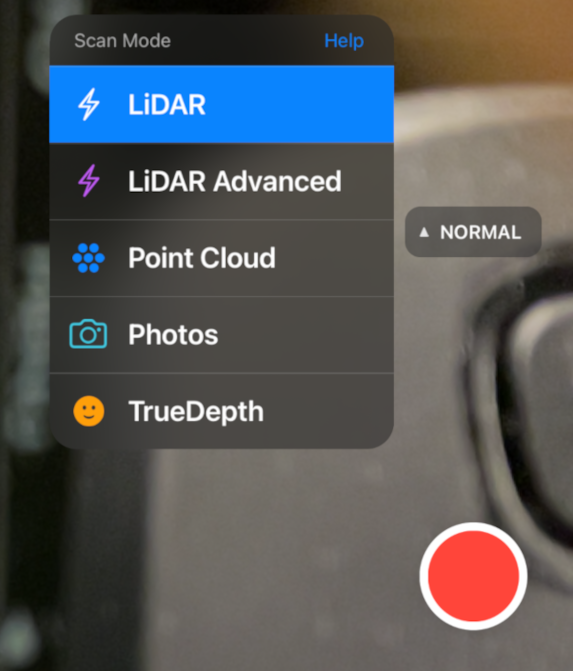
As you open the app you will be greeted by a big red record button.


As soon as you click the record button, the scanning process will start. Using the ordinary "LiDAR" option should be enough for most scans, but using the "LiDAR Advanced" option will often produce better results if used correctly (and I highly recommend looking into it as you want the best results for VR). Most options in the advanced section are pretty much self explanatory, if not, click the question mark in the top right hand corner.

Here are some general tips:
  • Avoid scanning the same area twice!
  • Keep in mind that scans are not 1:1 with reality they will look a little funky
  • Try to think of a route before scanning
  • Cover reflective surfaces, espacially mirrors!
  • Natural light will look the best in scans or light from a softbox
  • Try to scan every angle that you would look at in VR or otherwise there will be holes
  • Clean up your room the less small things are lying around the better the results

Processing and exporting
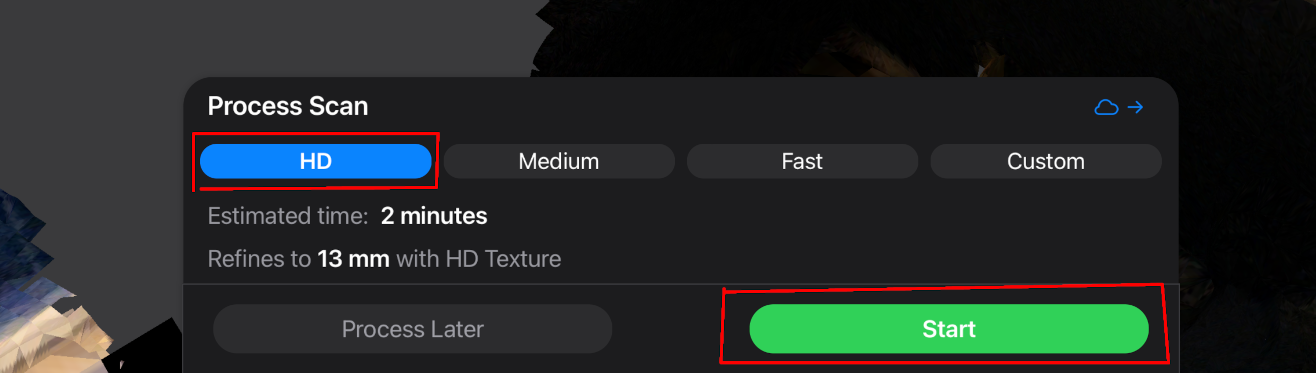
As soon as the scan ends you will see a white or already textured 3D model. Don't worry if your model is just white, the textures will be applied when the processing is done. Go ahead and click the big green process button if you are happy with your scan, if not delete this one and try again. It might take a few tries!


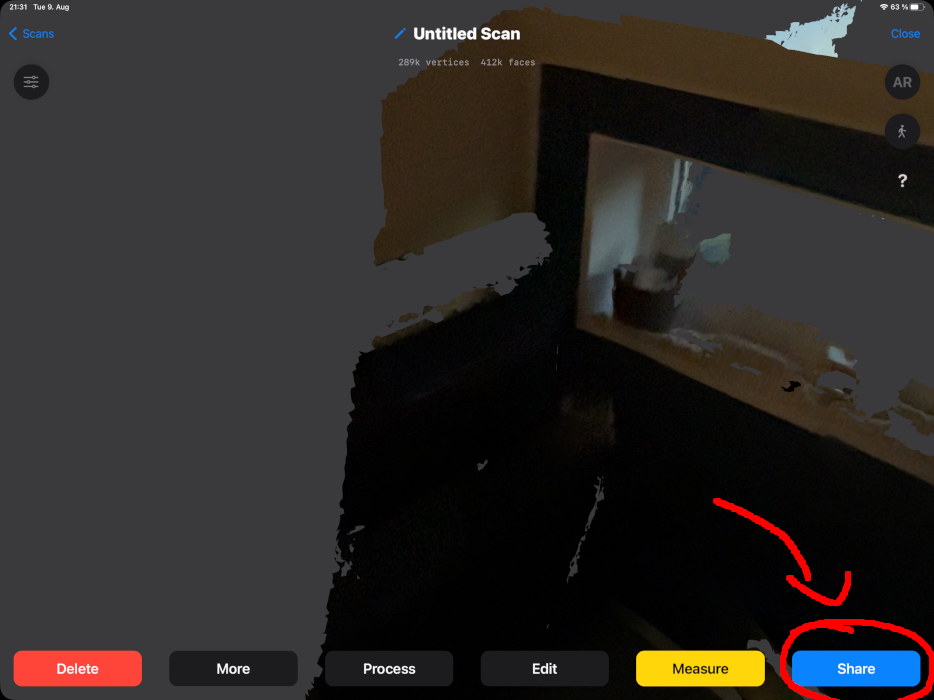
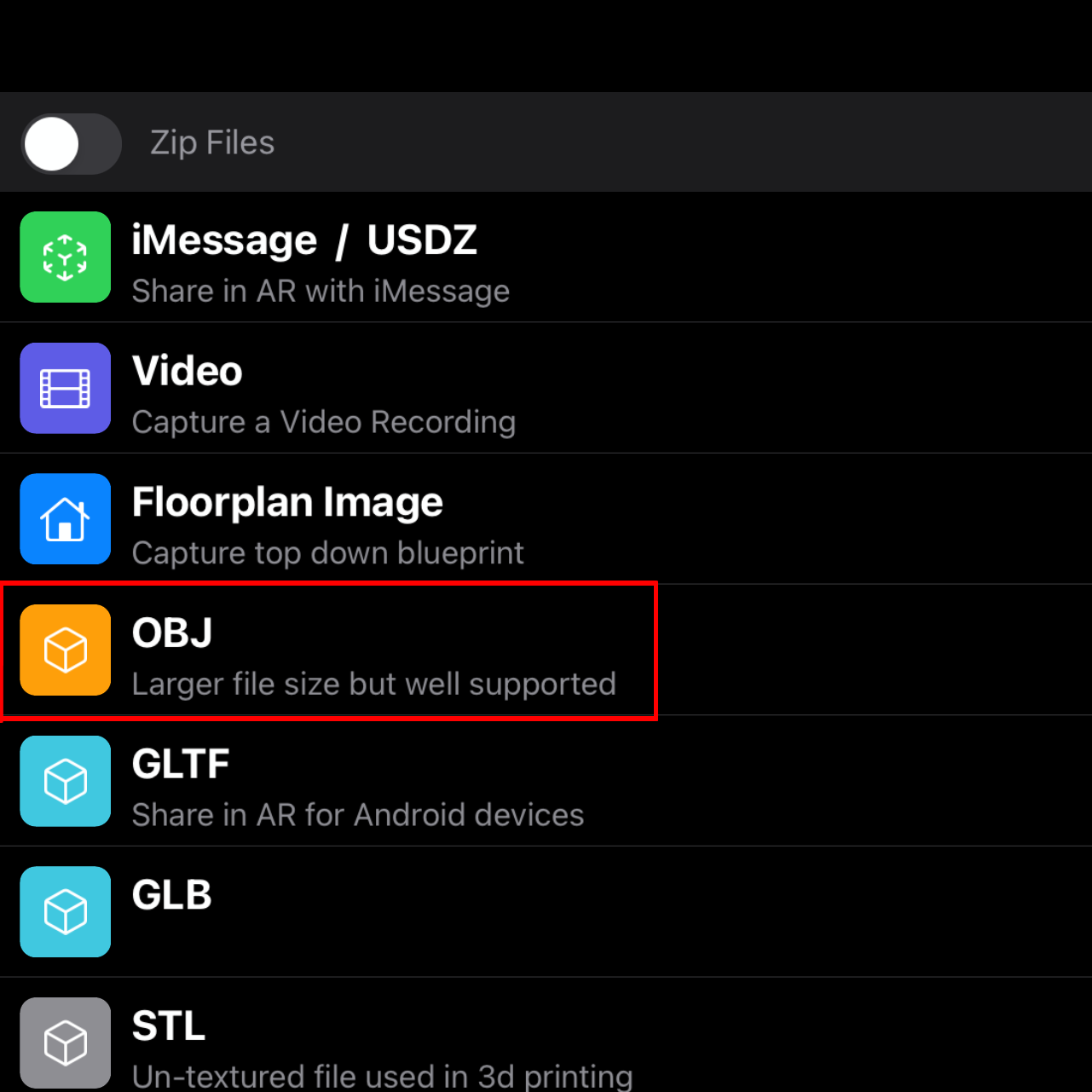
Processing might take up to 10 minutes depending on your model size. When the processing is done click on "share" and export it as a ".obj" file.


Now you need to transfer the file to your PC. I just uploaded my zip folder to Google Drive and downloaded it again to my PC, but you can do what ever you want.

That's it for the LiDAR process! You are doing great so far :)
The photogrammetry method ["done-ish" but UNDER CONSTRUCTION]
As previously mentioned photogrammetry is a very lengthy process but can lead to amazing results. There are 2 different ways to do photogrammetry.
  • using an app to process your images
  • using your PC to process your images
Your intention is what decides the method.

If you want to scan a small object or a small area (a room is probably too big), then choose the app method. Apps process the images on a cloud basis so no lentghy process time that your PC has to cover. Also the results apps deliver, usually tend to be mediocre at best, but this might be enough for most people.

Scanning large areas or objects with the goal of great quality, usually requires more than 500 images. Most apps won't allow such an amount of images to be processed, let alone allow for a resulting mesh to be of great quality. Therefore processing needs to be done on your PC.

Keep in mind that if you choose the app method, your pictures probably need to be taken inside the app and can't be imported.

Taking the pictures
Now to the fun part. There are a few general rules for picture taking:
  • Avoid taking pictures of the same angle twice
  • Try to think of a route before taking pictures
  • Lighting should be consistent and not too dark
  • Cover or hide reflective surfaces, espacially mirrors!
  • Take every single angle that in account
Got your pictures? Perfect!

Exporting and processing
Follow this if you chose the app method:
Inside the app, there should be an option to process or export your scan. Process at the highest quality and export as a .obj file. Transfer the .obj file to your PC.
Continue to the chapter, you are doing great!

Follow this if you chose the PC method:
A lot of good and professional photogrammetry software is sadly paid software. If you don't have a problem with that, then go ahead and use your software of choice! This guide will focus on a free open source option called Meshroom[alicevision.org]. To fully utilize Meshroom, a NVIDIA CUDA-enabled GPU is recommended. All GTX cards from the 10 series up to the RTX cards are fine. The download can be found here![www.fosshub.com]

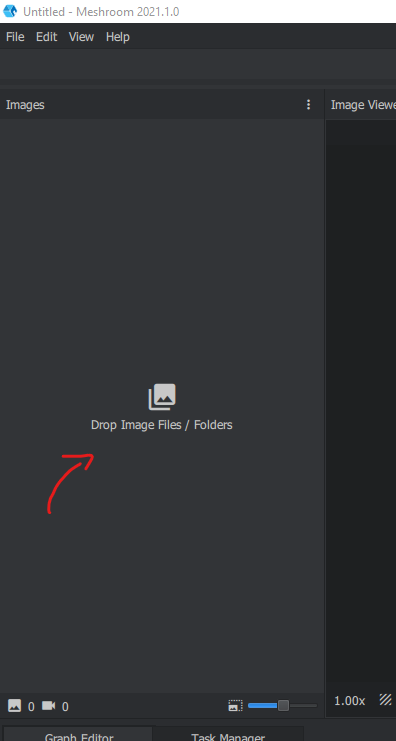
Start by unzipping the downloaded zip file and open "Meshroom.exe". Transfer the pictures you took with your camera of choice on your PC (preferably on an SSD). Drag your image folder onto this screen:

Now that your images have been imported, check the little aperture logo on your images. If it's green it's all going well if it's red then your camera has not been detected and needs to be added to the database[github.com]. Now before clicking the big green Start, save your project somewhere first! Now you may press the Start button.

The process will take very long, but it's possible to increase the processing speed by changing different settings. You are probably not familiar with the terminology, but a google search for optimal settings will help you!

Now after the process is done, the results will be saved in the folder "MeshroomCache". The textured .obj file can be found under: MeshroomCache > Texturing > "random numbers and letters" > texturedMesh.obj
Remember the location as you'll need it for the next Chapter!
Preparing the 3D model for use in Hammer
For this section of the guide you will need Blender. Blender is an open source program specifically made for editing and creating 3D models. It can easily be found here on Steam for free!

https://store.steampowered.com/app/365670/Blender/
Blender is a very complex piece of software that can be overwhelming at first, but I will keep it as simple as possible in this guide.

What we are doing now is converting the .obj model to a Hammer friendly file.
  1. Open Blender
  2. Create a new "general" file
  3. Go ahead and delete the default cube by pressing "delete" on your keyboard
  4. Outside of Blender: extract the .zip file containing your model (skip this if your model isn't zipped)
  5. In Blender, go to File > Import > "Wavefront (.obj)"
  6. Look for your 3D model and open the .obj file
If you feel like your mesh is too messy and needs to be tidied up, you can use Blender for that as well, but this will not be covered in this tutorial. Also don't forget to rotate your model properly, an even floor is very important for VR, as a slope can lead to nausea and motion sickness. When you are happy with your mesh, you are ready to export it. To do that just follow the steps below:
  1. Go to File > Export > FBX
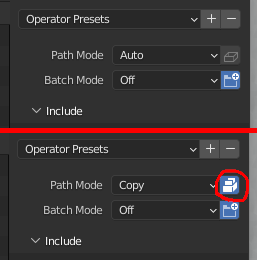
  2. Change the "Path Mode" to copy and tick the box right next to it

  3. Now simply name and export the file
And that's how you convert a .obj file to a .fbx file, for use in Hammer! (Keep it up you are almost done now!)
Creating the Steam VR environment
Congrats you've made it to the last part of the guide, you've done well so far! To continue, the following is required:
  • Your VR Headset needs to be connected to your PC!
  • Steam VR needs to be installed
  • Patience!
Start by opening Steam VR. Click on the 3 stripes at the top, go to "Workshop" and choose the "Create/Modify an Environment" option. A new window should open. Now click on "Create Empty Addon" give your addon a fitting name and save it by clicking "create". Finally click on blue button which says "Launch Tools".

The Model Editor
You are now in the asset browser! Launch the model editor by clicking on this little icon:

The Model Editor window should now open! Choose the "New VMDL From Mesh File" option. Look for the .fbx file from ealier and open it. If you get a "Mesh Not Under Content Directory" warning click OK.


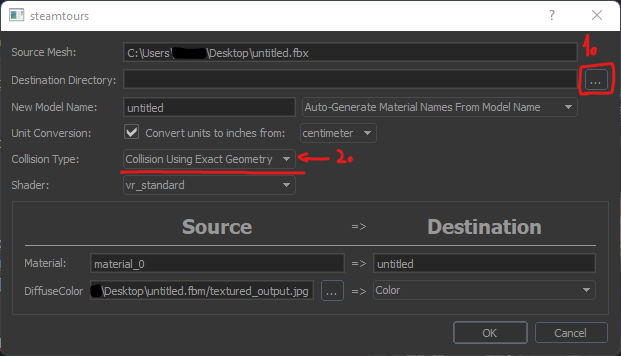
This window will now pop up. Click on the 3 dots next to destination folder.


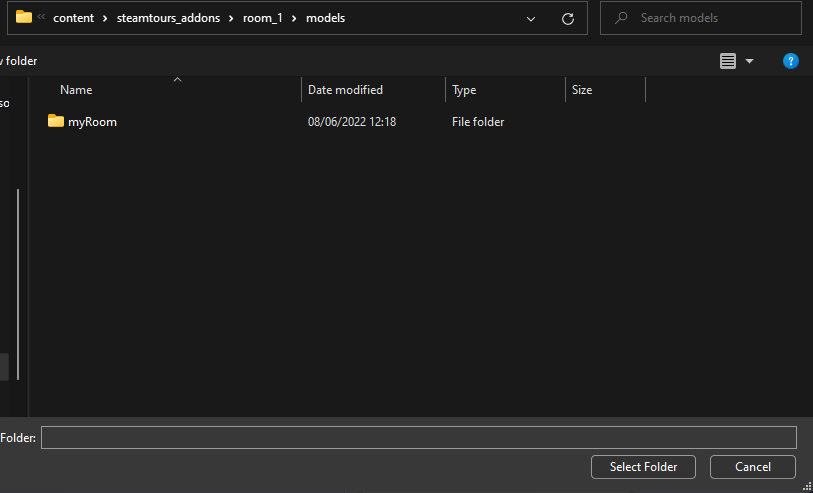
Make sure that the path of the folder is your addon's name! Just create a new folder in the "models" folder, which should be open by default. This is where the finished mesh will be saved later. Click on your new folder once, to select it and click "Select Folder".
You also need to change the "Collosion Type" to "Collision Using Exact Geometry", then click on OK.

After a short period of time the model editor should fully open. Just close it we don't need anything else.

The Hammer Editor
This is pretty much the last big step, keep it up!
To open the Hammer Editor click this icon:

The Hammer Editor will now launch! Click on File>New. A new empty map space will now be created.


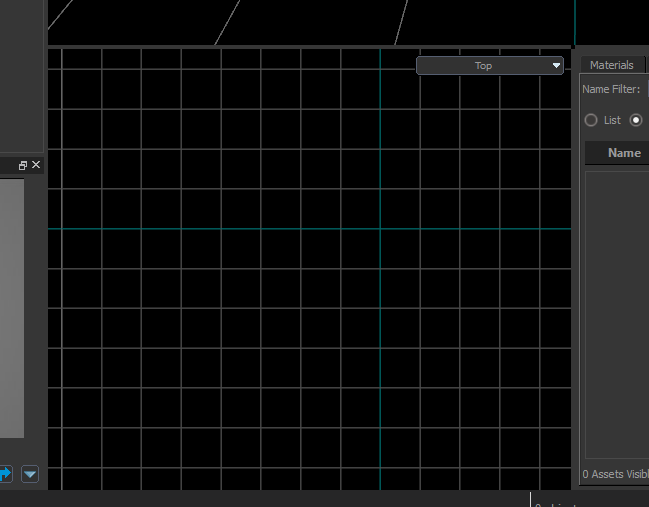
Click on the light bulb icon to select the "Entity Tool"


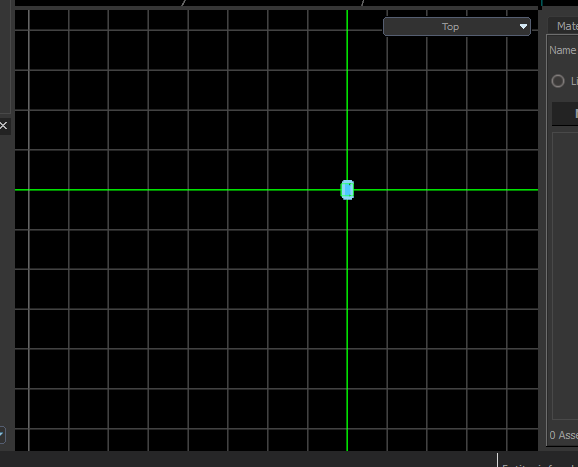
Click on the blue cross in middle of the grid.


Now press Enter to place an "info_player_start". This will be your spawn!

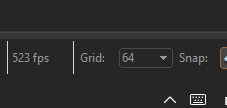
Next we will import the 3D Model. Go back to the Asset Browser window, it should still be open in the background. Search for the name of your 3D model in the browser. The file name ends with ".vmdl". Just drag the file onto your grid in Hammer and the 3D Model should appear. In the bottom right hand corner in the Hammer Editor there should be a grid size option.
Change the grid size to smaller digit. A smaller grid allows for more precise model movement.

These icons allow for different kinds of transformations, such as rotating, stretching etc. If you feel like your model is correctly placed, it's time to compile the map to see how it looks in VR.
Go to File > Save to save your map file and simply press F9 to open the build window. Do a fast compile and click on build. After that put on your VR headset and enjoy the view. If things are not properly aligned, go back to Hammer move the model around or try using a smaller grid size.


By now you have probably noticed that the sky is black. This can be changed by adding a skybox. Cleaning up your map takes time and is beyond the scope of this guide. This video explains how you add a skybox and proper lighting. Need something else? There are countless tutorials on youtube, reddit and the wiki!

That's it! All you need to do now is uploading it to the Steam Workshop!
Uploading the environment to the Steam Workshop
Ok last step I promise!
In the asset browser click on the blue Steam Workshop Logo, which can be found in the same row as Hammer. The Workshop Manager will now open up. Click on the little plus in the top left hand corner and fill out the form.

Congratulations you can now use your environment in Steam VR Home
That's all Folks!
(This guide is a little messy and might be a little confusing, but keep in mind that this guide is very rushed and will be tidied up later!)

I hope this guide was helpful and made this lenghty process a little easier. Don't be afraid to ask questions down below and most importantly: Have fun in your new VR Location!

Shameless plug of my own VR scans
https://test1.login.steam.hlxgame.cc/sharedfiles/filedetails/?id=2825178936

Showcase of scans made by others!
If you were successful using this guide, post your scan below and I will post it here!

~~~~~~~~~~~~~~~~~~~~~~~~~~~~~~~coming soon~~~~~~~~~~~~~~~~~~~~~~~~~~~~~~~~
6 Comments
autumn22 7 Oct @ 5:28pm 
Oh my GOD I've been thinking about doing this for so long but I never really saw any documentation and most of the recommended tools are obsolete programs from 2017 that functionally don't exist anymore. Thank you so much for making this. I'm obsessed with cataloging places and have always wanted to make a full 3D scan of my room or the like. This is absolutely fantastic. :uppies:
zog359 28 Jun @ 2:46pm 
How do i make sure textures are added during the Hammer editor step? So far, my environments are only pulsating red meshes
Khettary 29 Aug, 2022 @ 11:49am 
orange
冉冉 14 Aug, 2022 @ 5:38pm 
cool
Rorenz  [author] 13 Aug, 2022 @ 11:10am 
Thank you so much for your feedback <3
Blake 13 Aug, 2022 @ 2:03am 
extremely well laid out guide, Thank you so much. You're about to be responsible for a surge in steam vr enviroment uploads! good job! :Honored: